How to setup Luna Screens on a Raspberry Pi.
1. Download the Luna Screens Image
We provide custom, optimized images for Raspberry Pi. Download the image that corresponds to your device:
Note: Other Raspberry Pi models are not supported at this time.
2. Flash the Image
You will need to flash the downloaded image to a microSD card. We recommend using balenaEtcher, which is a free and easy-to-use tool available for Windows, macOS, and Linux.
- Download and install balenaEtcher.
- Insert your microSD card into your computer.
- Open balenaEtcher, select "Flash from file" and choose the `.img` file you just downloaded.
- Select your microSD card as the target and click "Flash!".
3. Connect to the Setup WiFi
Insert the flashed microSD card into your Raspberry Pi and power it on. After the initial boot process, your screen will display a setup page.
The Raspberry Pi will create its own temporary WiFi network. On your smartphone or computer, connect to the following WiFi network:
4. Enter Your Network Details
Once connected to the setup WiFi, either navigate to the URL shown on the screen using your device's web browser, or simply scan the QR code displayed on the TV.
You will be presented with a page where you can enter your local network's WiFi name (SSID) and passphrase. Once you submit these details, the Raspberry Pi will connect to your WiFi network and automatically launch the Luna Screens digital signage app.
5. Pair Your Screen
When the Luna Screens app starts, it will display a pairing code on the screen. Follow the instructions to log into your Luna Screens dashboard and enter the code to pair the screen to your account.
- Product
Features
From screen previews, auto boot on start up, playlists, templates and more, see what our platform has to offer.
Supported Hardware
Find out what platforms we support, Android, Google TV, Fire TV, etc
Supported Content Types
Content templates, Google Slides, YouTube, etc. See our ever growing list of supported content types.
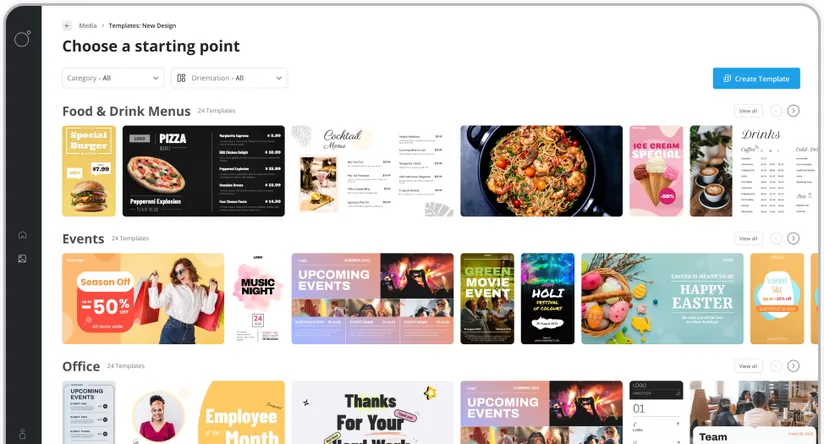
Features
From screen previews, auto boot on start up, playlists, templates and more, see what our platform has to offer.
- Resources
Docs
Need help getting started or want to better understand how everything works?
Blog
Our latest news and industry insights. See what's on our mind and find tips to help you with digital signage.
About us
Find out who is behind Luna Screens and why we built it.

Blog
Our latest news and industry insights. See what's on our mind and find tips to help you with digital signage.
- Pricing