How to Customise Platform Branding
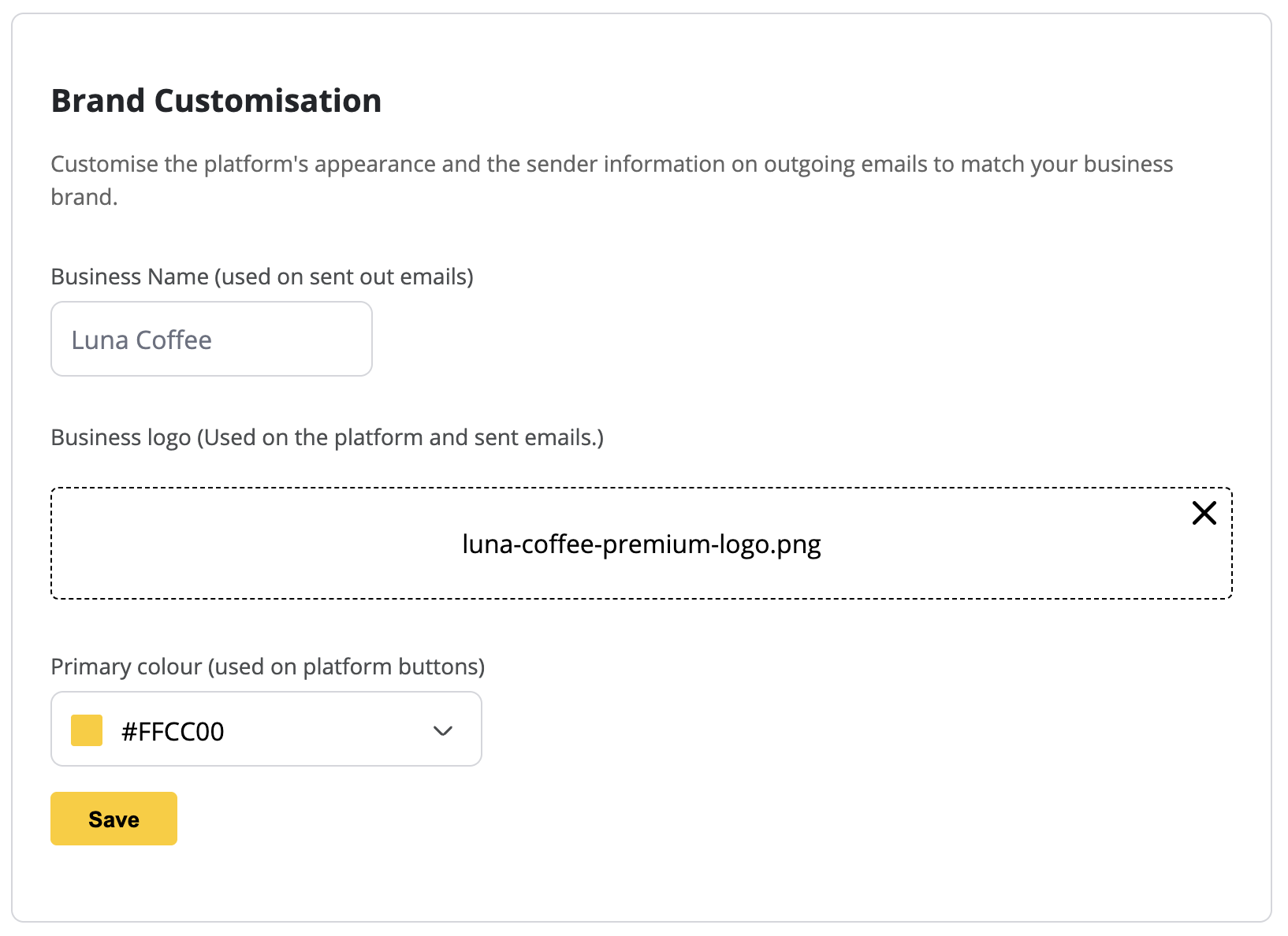
Luna Screens offers white-labelling capabilities to give your dashboard a professional flair that matches your business identity. You can upload your own logo, change the primary button colours, and customise the sender name on outgoing emails.
Updating Your Branding Settings
- Log in to your Luna Screens dashboard.
- Navigate to the Account section using the side menu.
- Click on the Branding tab.
1. Changing the Business Name
The "Business Name" is used as the sender name on any automated emails sent by the platform (such as user invites or login links). Enter your company name in the Business Name input field.
2. Uploading a Custom Logo
Your custom logo will replace the default Luna Screens logo in the dashboard header and on outgoing system emails.
- Under the "Business logo" section, click to upload a new image.
- Select a high-quality logo file from your computer (a transparent PNG or SVG works best).
3. Setting a Primary Colour
The primary colour changes the appearance of buttons, links, and active elements across the dashboard to match your brand's aesthetic.
- Under the "Primary colour" section, use the colour picker to select your brand's main colour.
- Alternatively, type your exact Hex colour code (e.g.,
#6366f1) into the input box.
Once you are happy with your changes, click the Save button at the bottom of the form. Your new branding will be applied immediately.
- Product
Features
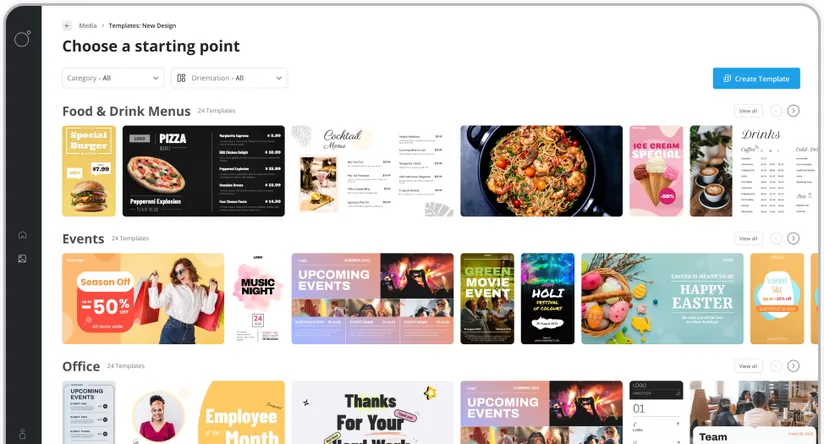
From screen previews, auto boot on start up, playlists, templates and more, see what our platform has to offer.
Supported Hardware
Find out what platforms we support, Android, Google TV, Fire TV, etc
Supported Content Types
Content templates, Google Slides, YouTube, etc. See our ever growing list of supported content types.
Features
From screen previews, auto boot on start up, playlists, templates and more, see what our platform has to offer.
- Resources
Docs
Need help getting started or want to better understand how everything works?
Blog
Our latest news and industry insights. See what's on our mind and find tips to help you with digital signage.
About us
Find out who is behind Luna Screens and why we built it.

Blog
Our latest news and industry insights. See what's on our mind and find tips to help you with digital signage.
- Pricing