How to Setup Multi-User Support & Granular Permissions
Luna Screens allows you to invite your team members and assign them specific roles and permissions. This is perfect for businesses that need to restrict access to certain screens or features.
1. Creating a Permission Group
Before inviting a user, you should define what they are allowed to do by creating a Permission Group.
- Navigate to the Account page from the main dashboard.
- Select the Users & Permissions tab.
- Click on Create Permission Group.
- Give the group a descriptive name (e.g., "Content Editors" or "Screen 1 Managers").
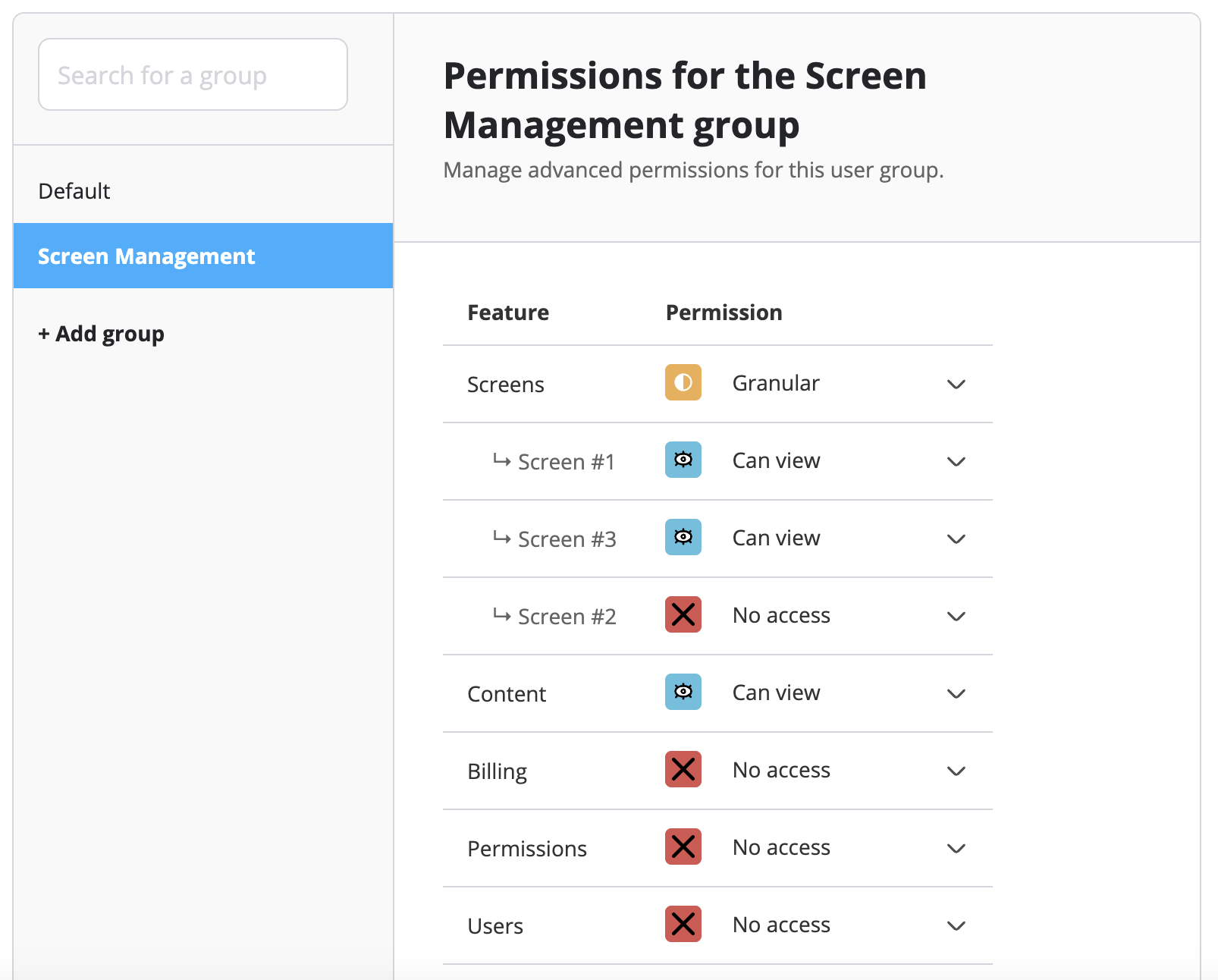
- Select the specific permissions you want to grant. You can restrict access to certain screens, prevent users from changing billing details, or only allow them to view content.
- Click Save to create the group.
Tip: If you want content to be accessible only to a specific permission group, then set the 'Content' permission to Granular, this is useful if you're managing different clients and want to isolate each ones access.
2. Inviting a Team Member
Once your groups are set up, you can invite users to join your account.
- On the same Users & Permissions tab, click Invite User.
- Enter the team member's email address.
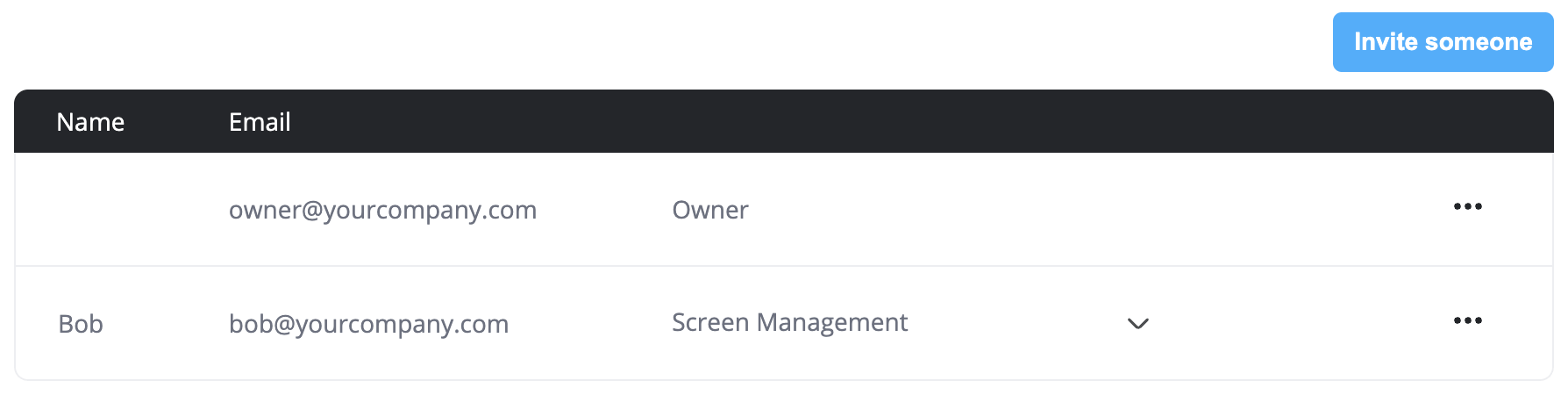
- Select the Permission Group you just created from the dropdown menu.
- Click Send Invite. The user will receive an email with a link to join your team.
Tip: See our docs on a custom email domain so that you can send out the invite from your own branded domain
3. Managing Screen-Level Privacy
If you want a user to only manage specific screens, ensure their assigned Permission Group has Granular set for 'Screens' you can then set which specific screens they should have access to. They will only see those specific screens you explicitly granted them access to when they log in.
- Product
Features
From screen previews, auto boot on start up, playlists, templates and more, see what our platform has to offer.
Supported Hardware
Find out what platforms we support, Android, Google TV, Fire TV, etc
Supported Content Types
Content templates, Google Slides, YouTube, etc. See our ever growing list of supported content types.
Features
From screen previews, auto boot on start up, playlists, templates and more, see what our platform has to offer.
- Resources
Docs
Need help getting started or want to better understand how everything works?
Blog
Our latest news and industry insights. See what's on our mind and find tips to help you with digital signage.
About us
Find out who is behind Luna Screens and why we built it.

Blog
Our latest news and industry insights. See what's on our mind and find tips to help you with digital signage.
- Pricing